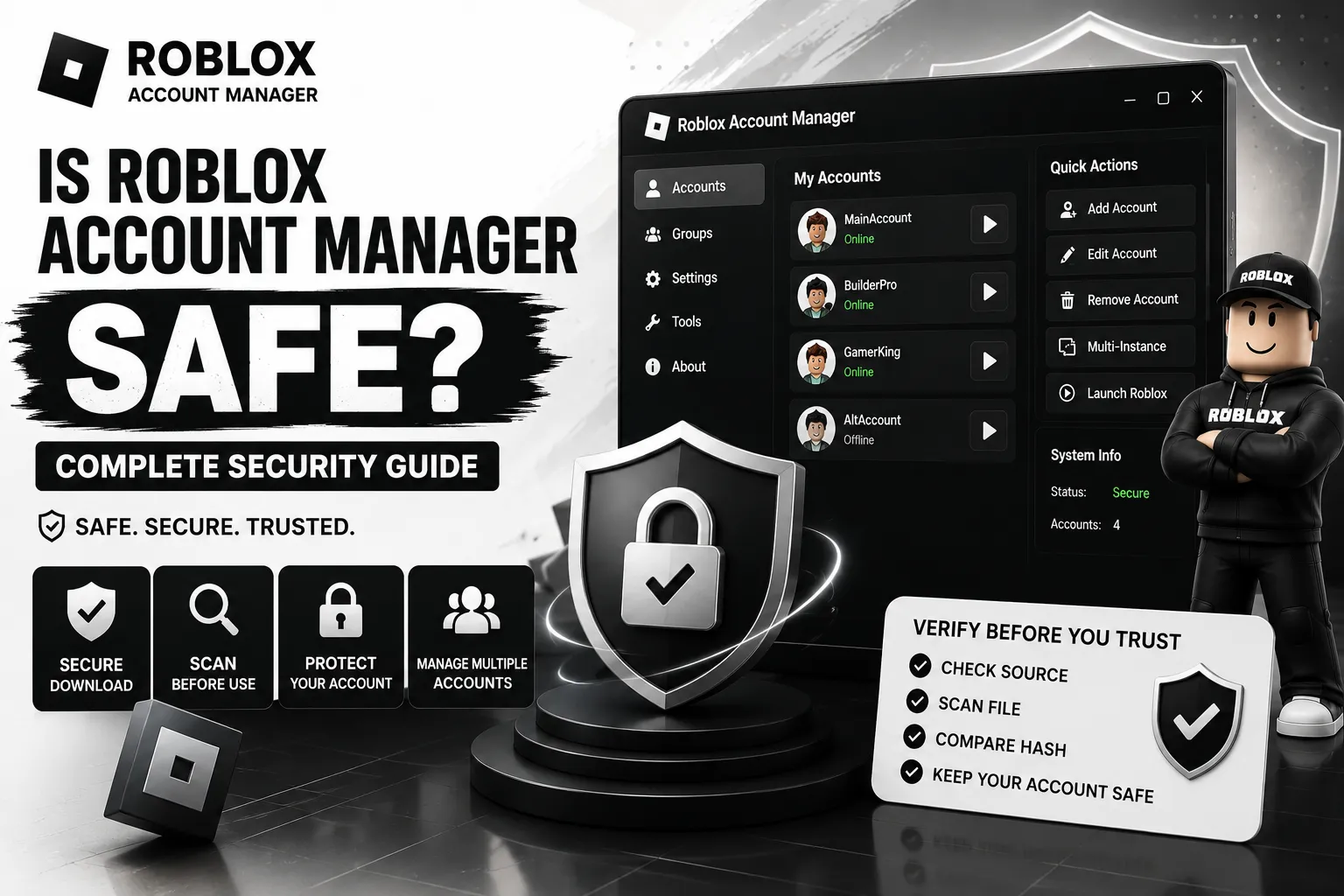
Is Roblox Account Manager Safe? Security Guide
Before giving any third-party tool access to your Roblox accounts, it is natural to ask one important question: Is Roblox Account Manager safe to use? The answer depends on where you get it, which version you install, and how carefully you handle your account information. When used responsibly, it can be a practical tool for managing multiple Roblox profiles.
Instead of simply trusting a download because it appears popular, it is important to understand what you are installing and how your account information is handled. If you are asking, “Is Roblox Account Manager safe?” we’ll break down the safety of Roblox Account Manager, explain common security warnings, and share practical checks you can use before giving the tool access to your Roblox profiles.
Is Roblox Account Manager Safe?
Yes, Roblox Account Manager can be a safe option, especially when the application is obtained from a trusted source (Domain). The tool is designed to manage Roblox accounts on Windows, but since it handles account-related information, users should always take basic security precautions before using it.
One of the best ways to stay protected is to verify the download before opening it. Keep your antivirus enabled, scan the application if you are unsure about a warning, use a strong Roblox password, and never share your account login details or login cookies with anyone.
Why Antivirus May Detect Roblox Account Manager?
Antivirus software may flag Roblox Account Manager because it checks an app’s behavior, file reputation, and system activity. Since this is a third-party tool that works with Roblox sessions, some of its actions may look unusual compared with normal gaming apps.
| Warning | What Does It Mean? | What You Should Do? |
| GameHack or PUA Alert | Your antivirus may flag the tool as potentially unwanted or unsafe software. | Check the exact warning and make sure you downloaded the app from a trusted source(Domain). |
| Trojan Warning | The file could be modified, repacked, or contain an unwanted component. | Do not open it until you verify the file and its download source. |
| Download Blocked | Your browser may consider the file potentially risky. | Avoid bypassing the warning if the file came from an unknown website. |
| Defender Disable Request | The file or installer may ask you to turn off Windows security protection. | Treat this as a red flag and do not disable protection without a clear reason. |
| Account Data Warning | Saved cookies or account files can contain sensitive login information. | Never share AccountData.json, cookies, tokens, or exported account data with anyone. |
A warning does not automatically mean that it is Roblox Account Manager Safe or has malware. Always check the exact detection, verify the download source, and scan the specific file before deciding whether to use it.
What About Roblox Account Manager 3.7.2?
Roblox Account Manager 3.7.2 has received attention because some users reported security warnings around this version. However, a warning does not prove that every copy is harmful, so always check the exact file, its download source, and whether it matches the original project release.
Be especially careful with 3.7.2 files from random websites, Discord attachments, shortened links, or modified “fixed” versions. If a download asks you to disable Windows Defender or other security tools, do not run it; use a trusted source(Domain) and verify the file before opening it.
How to Check Roblox Account Manager Safety Before Running It?
If you want to check a copy of Roblox Account Manager before opening it, take a few simple safety steps first. A clean-looking app does not always mean the downloaded file is safe, so checking the file itself is important.
Check the Download Source
Prefer robloxaccountmanager.us.com as the official download source for Roblox Account Manager instead of random download pages or mirrors. Be careful with files shared through Discord, shortened links, or unknown websites.
Check the Downloaded File
Look at the file name, ZIP archive, and installer before opening anything. Password-protected archives or builds that claim to bypass antivirus warnings should be treated with extra caution.
Compare the File Hash
If an official hash is available, compare it with the hash of your downloaded file. A different hash does not automatically mean the file is dangerous, but it confirms that the files are not identical.
Scan Before Opening
Scan both the downloaded archive and extracted files with Microsoft Defender or another trusted security scanner. Complete the scan before launching the application for the first time.
Check What the Program Changes
Pay attention to unexpected startup entries, scheduled tasks, browser extensions, or unknown services. If a program makes changes you didn’t expect, it should be investigated further.
Protect Your Main Account
Do not immediately test an unknown build with your primary Roblox account. If you cannot afford to lose access to an account, avoid giving its sensitive information to an unverified third-party tool.
Delete Roblox Account Manager If You Notice These Signs
- If something about your Roblox Account Manager installation looks unusual, it is better to stop using it and remove the program. The following warning signs may indicate that the file is modified, unsafe, or from an untrusted source.
- Downloaded from an unknown source: The file came from a random mirror, Discord attachment, Telegram file, shortened link, or YouTube description.
- Asked to disable security: The installation instructions tell you to turn off Microsoft Defender, add exclusions, or ignore repeated antivirus warnings.
- Contains Risky files: The ZIP is password-protected, includes unexpected installers, or contains programs you did not expect.
- Requests sensitive account data: The application asks for your Roblox password or authentication cookie without clearly explaining why it is needed.
- Unexpected Roblox activity: Your account starts logging out, changing settings, spending Robux, joining groups, or sending messages without your permission.
- Unknown system changes: New browser extensions, startup entries, scheduled tasks, or unfamiliar background processes appear after installation.
What to Do If You Already Installed Roblox Account Manager?
If you installed a copy from a source you no longer trust, act quickly and avoid using that same download again. The following steps can help protect your PC and Roblox account:
Stop Using the Download Source
Do not download updates or replacement files from the same link, mirror, or attachment.
Remove the Application
Uninstall Roblox Account Manager if you are unsure about the source or integrity of the version you installed.
Delete the Downloaded Files
After removing the application, delete the extracted folder and original ZIP or installer if they are no longer needed.
Run a Full Security Scan
Use Microsoft Defender to perform a full scan of your computer. If it detects a Trojan or potentially unwanted program, do not restore the flagged file until you understand the detection.
Run a Second Security Scan
Use another trusted malware scanner for a second opinion, especially if the file came from a mirror, social media attachment, or modified package.
Change Your Roblox Password
From a clean device or browser, change your Roblox password if you believe your account information may have been exposed.
Enable Extra Account Protection
Turn on Roblox 2-Step Verification or passkey protection to add another security layer to your account.
Sign Out of Other Sessions
Review your Roblox security settings and log out of other active sessions if you suspect someone else may have accessed your account.
Review Your Account Activity
Check your email, phone number, security settings, payment activity, trades, group actions, and recent purchases for anything you do not recognize.
Check Your Browser
Remove unfamiliar browser extensions and clear browser cookies if you suspect that sensitive session information may have been exposed.
Parent Checklist for Roblox Account Manager
If your child installed Roblox Account Manager after seeing a video or post about farming, trading, or alternate accounts, take a calm approach and check is Roblox Account Manager is safe. Ask where it came from, whether Windows Defender showed any warning, and whether any Roblox password, cookie, or backup code was entered.
- Check Windows Security: Open Protection History and review recent alerts.
- Check downloaded files: Look for ZIP/RAR files and extracted Roblox Account Manager folders.
- Review Roblox security: Check the email, phone number, 2-Step Verification, passkeys, and active sessions.
- Check account activity: Look for unfamiliar Robux purchases, trades, group actions, messages, or avatar changes.
- Encourage reporting: Make security warnings easy to discuss so children feel comfortable reporting unusual activity instead of hiding it.
FAQs – Is Roblox Account Manager Safe?
Conclusion
Roblox Account Manager can be a useful option for managing multiple Roblox accounts, but its safety depends on the version you use and where you download it from. A genuine build from a trusted source (robloxaccountmanager.us.com) is a better choice than modified copies, unknown reuploads, or files that ask you to disable security tools.
If the question “Is Roblox Account Manager safe” is still on your mind, verify the download before opening it, keep your antivirus active, and protect your Roblox passwords and account data. Take these simple precautions before getting started to enjoy a more secure account management experience.